Share on LinkedIn
If you want to schedule posts on a LinkedIn personal account, you'll need to create and configure an app for this platform. This guide will walk you through the setup process.
If you are looking to be able to schedule posts on both personal accounts and business pages, read this guide.
1. Create a new app
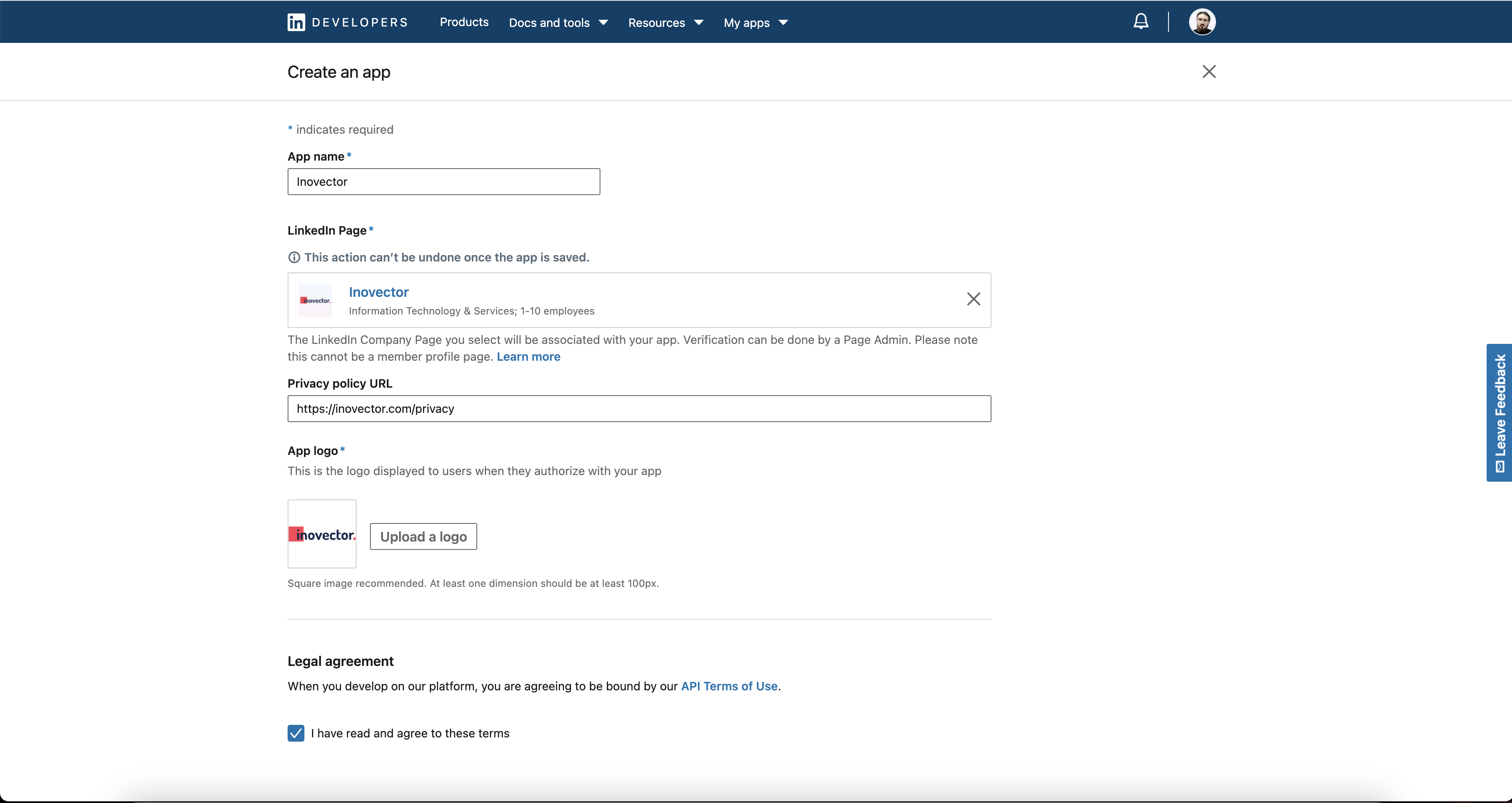
- Navigate to the LinkedIn Developer Dashboard and click on Create App button.
- Fill out the required information, such as your app name and company name, LinkedIn page, privacy policy, and app logo.
- Agree to the LinkedIn Developer Terms of Use and click Create App
Screenshots:
2. Add products
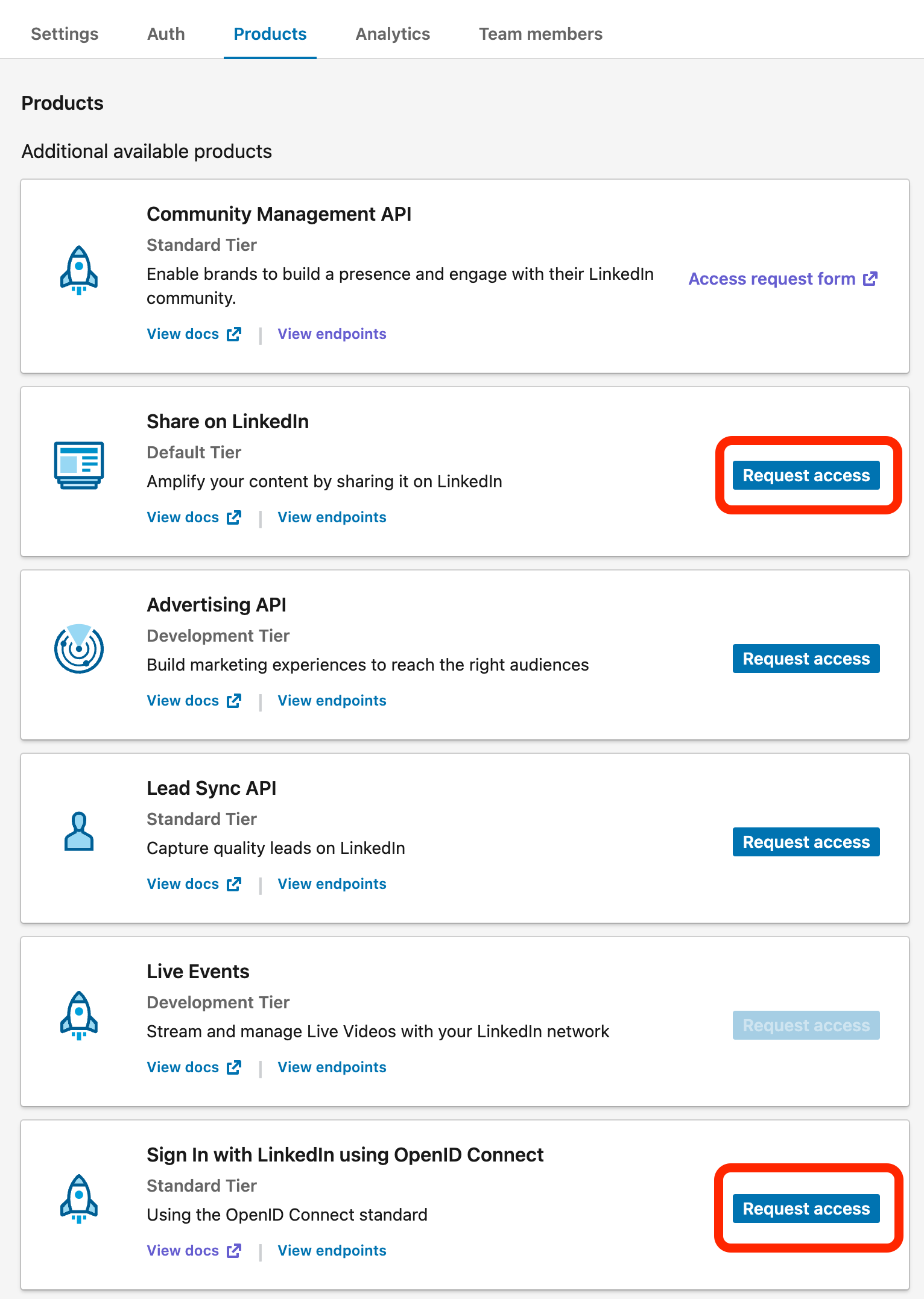
Now that your LinkedIn app is created, you can add the following products to it:
- Share on LinkedIn
- Sign In with LinkedIn using OpenID Connect
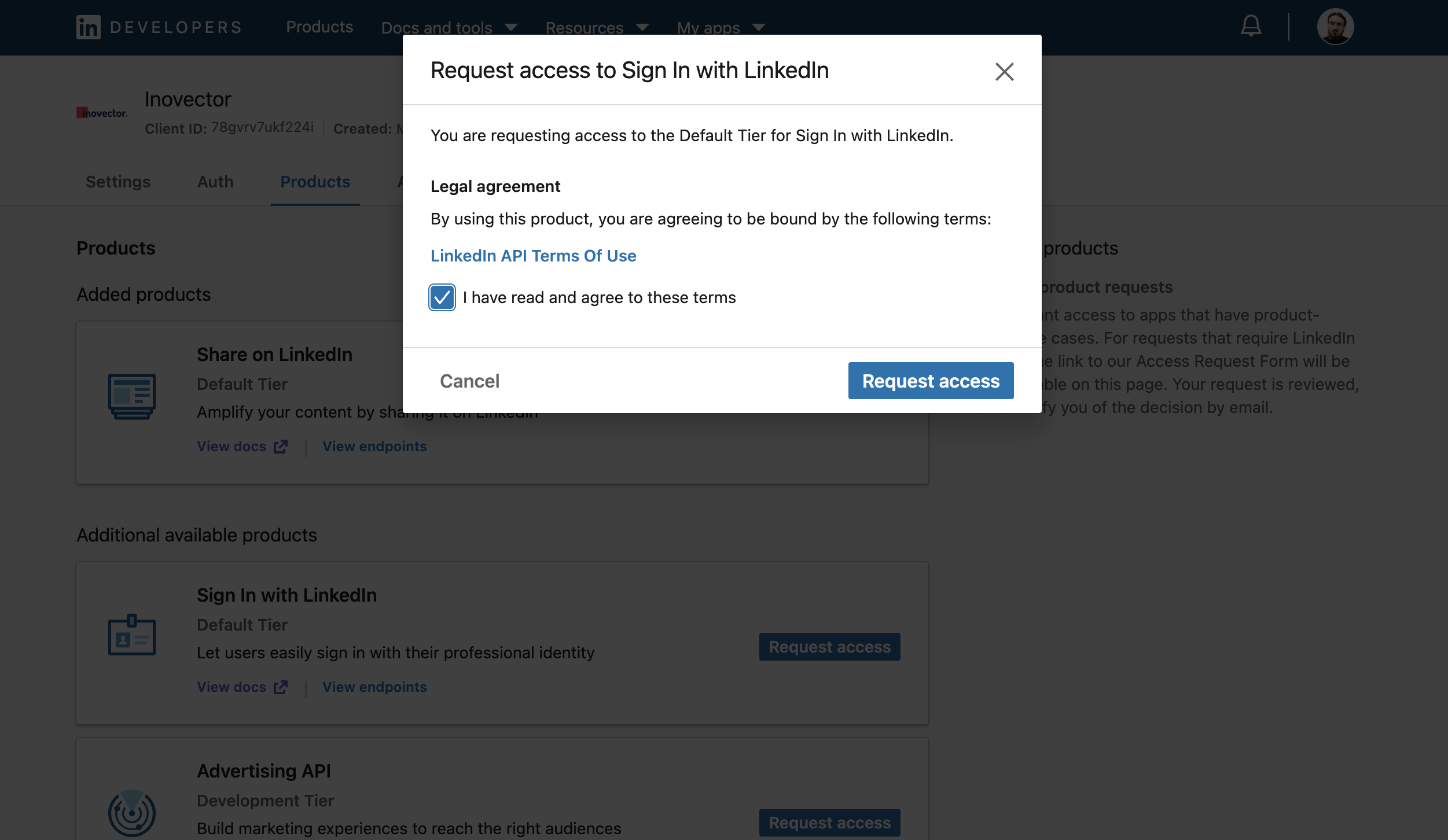
To add these products, click on Request access for each one and agree to the terms and conditions.
Screenshots:
3. Copy the credentials to Mixpost
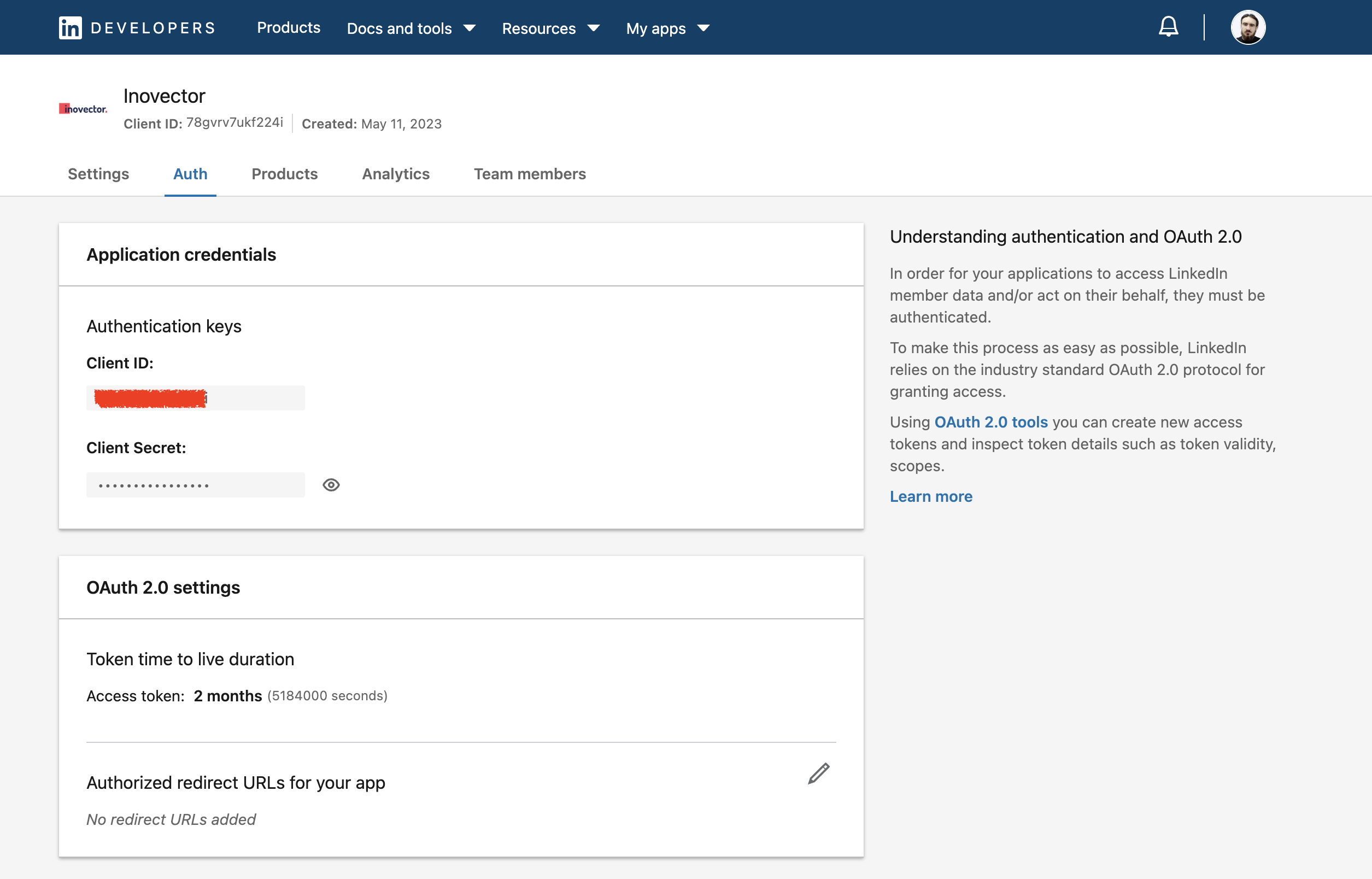
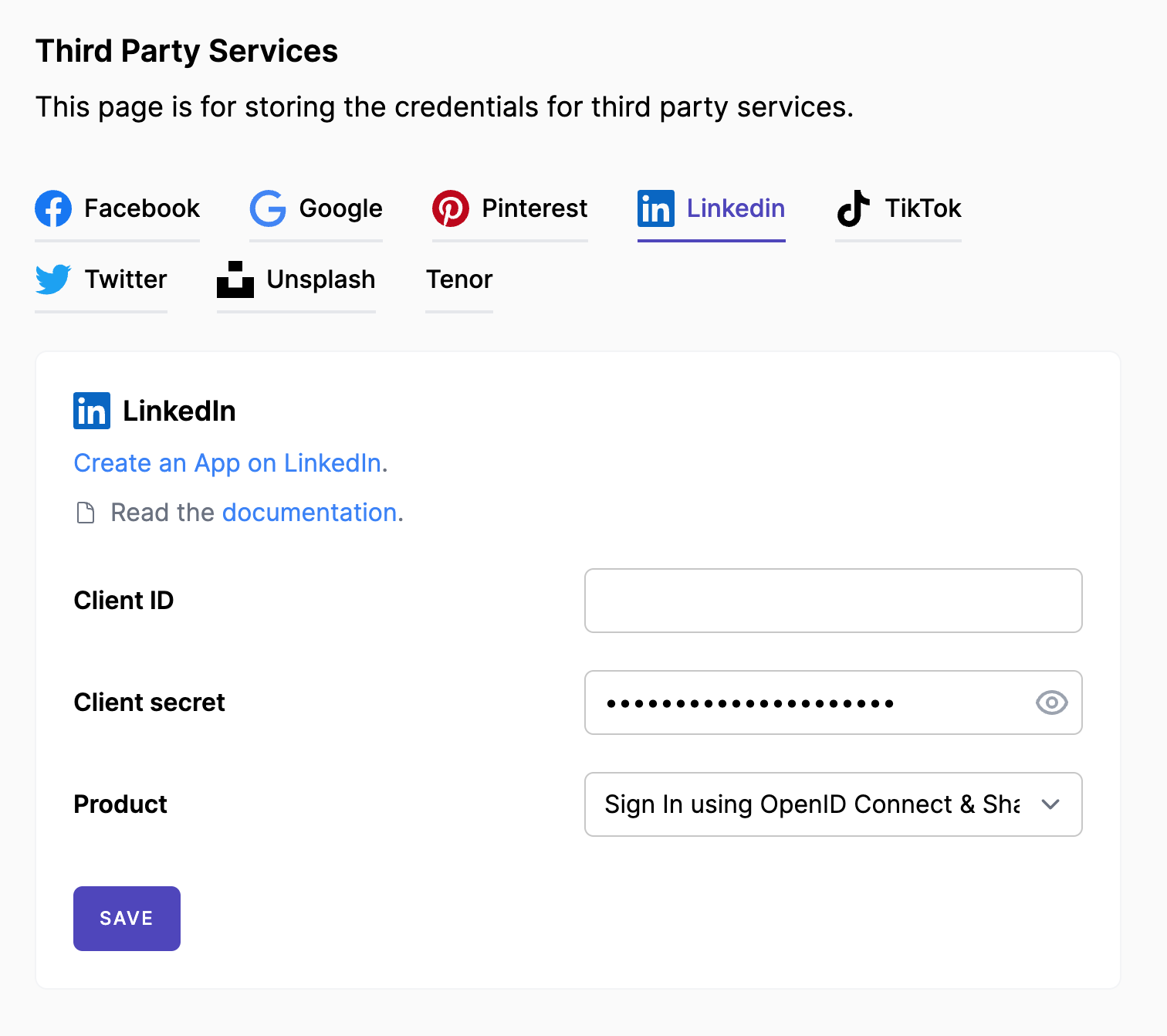
Click on the Auth tab where you will find the Client ID and the hidden Primary Client Secret. Copy these credentials, then navigate to your Mixpost dashboard and paste them into the LinkedIn third-party service form. Additionally, for the Product field, select the Sign In using OpenID Connect & Share API option.
- Pro and Enterprise
- Lite
Navigate to the User Menu at the bottom left, click Admin Console, and then click on Services from the left sidebar.
Click on Services from the left sidebar.
Screenshots:
4. Configure redirect URIs
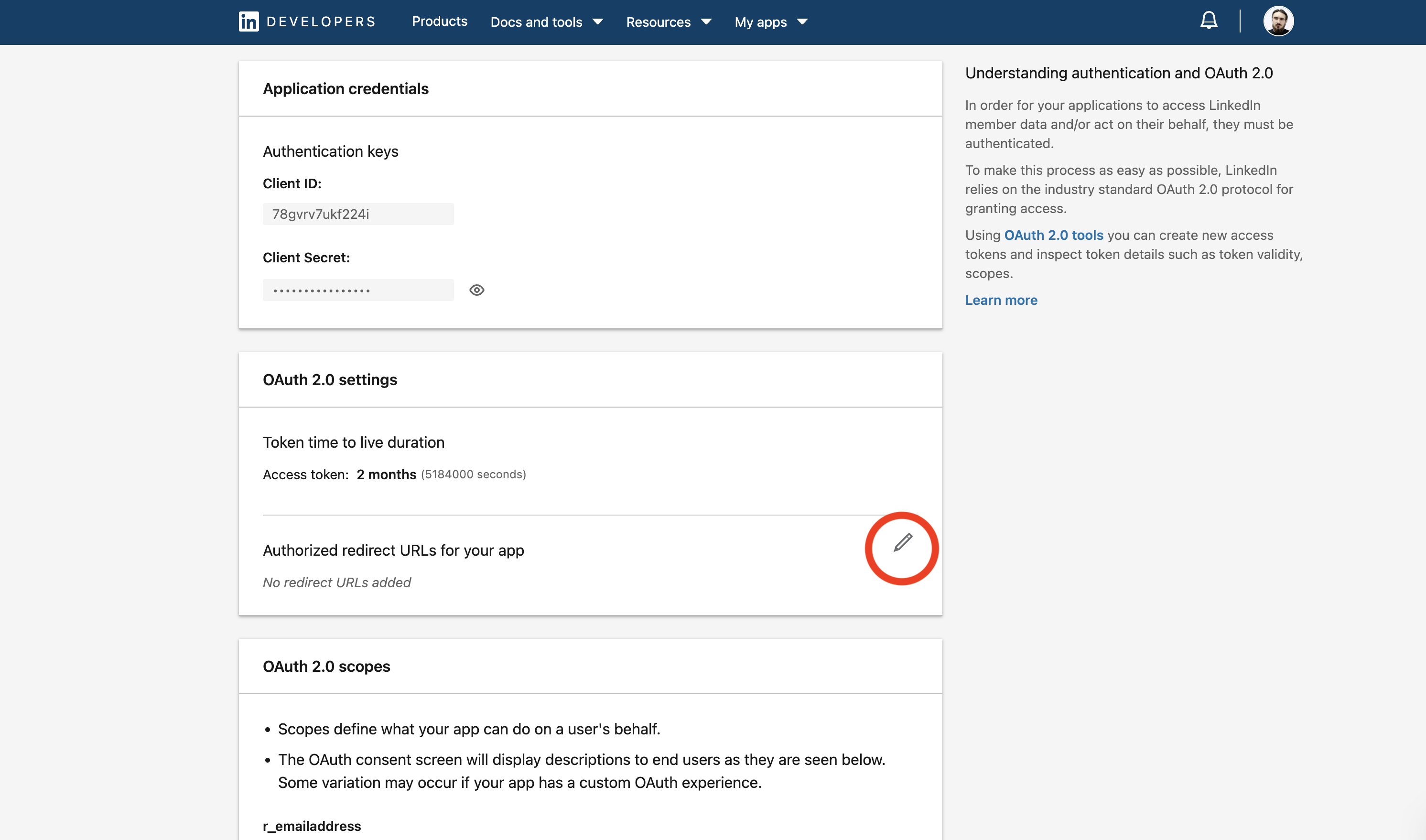
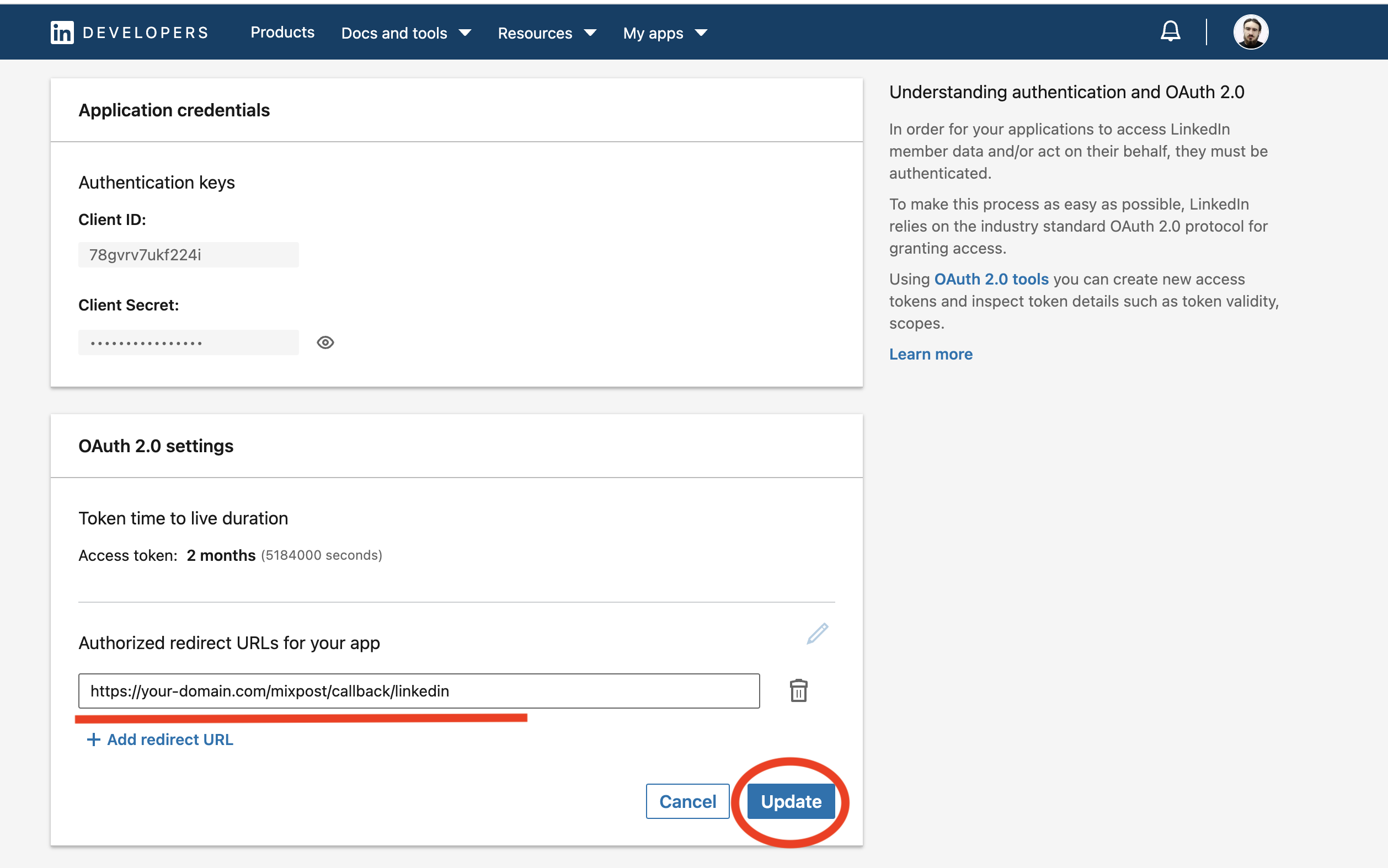
Scroll down to the Authorized redirect URLs for your app field and add and save the following redirect URI:
https://example.com/<MIXPOST_CORE_PATH>/callback/linkedin
<MIXPOST_CORE_PATH> with your own value<MIXPOST_CORE_PATH> is a placeholder for the MIXPOST_CORE_PATH environment variable — the path prefix Mixpost is served under.
- Set to a prefix, for example
mixpost— use that value:https://example.com/mixpost/... - Empty — Mixpost is served from the root of your domain, so remove the placeholder and the slash that follows it:
https://example.com/...
MIXPOST_CORE_PATH is empty by default in Pro v7+ and Enterprise v8+. In earlier versions, and in Lite, it defaults to mixpost.
Callback URLs — callback/..., inbox-webhook/..., uninstall-callback/... and, in Enterprise, payment-webhook — can carry a different prefix from the rest of your instance, because they follow MIXPOST_CALLBACK_PATH whenever that variable is set. For the OAuth Redirect URI you do not have to assemble it at all: the provider's service form in the Mixpost dashboard shows the exact URL, ready to copy.
Screenshots:
5. Done
You can test by adding your LinkedIn account to Mixpost and scheduling posts.
- Pro and Enterprise
- Lite
Navigate to a workspace, then select Social Accounts from the left sidebar and click Add Account.
Lite package does not support this social platform. Unlock Pro features