YouTube Integration
With Google's service, you will be able to post videos on your YouTube channel.
Before you start, make sure you have the following:
- A Google account
- A project in Google Console
1. Enable YouTube Data API service
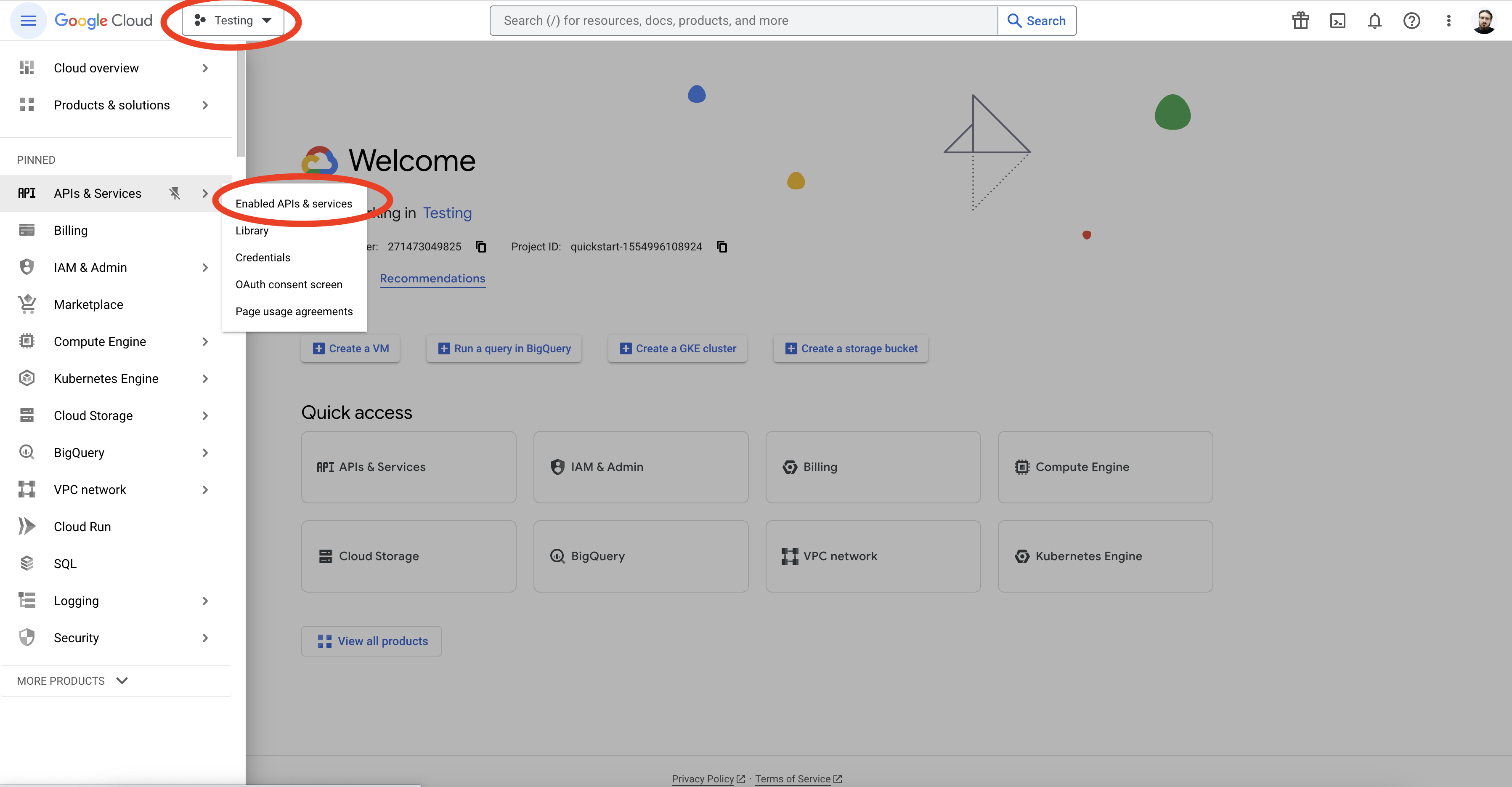
- Go to the Google Console and select your project.
- Click on Enable APIs and Services.
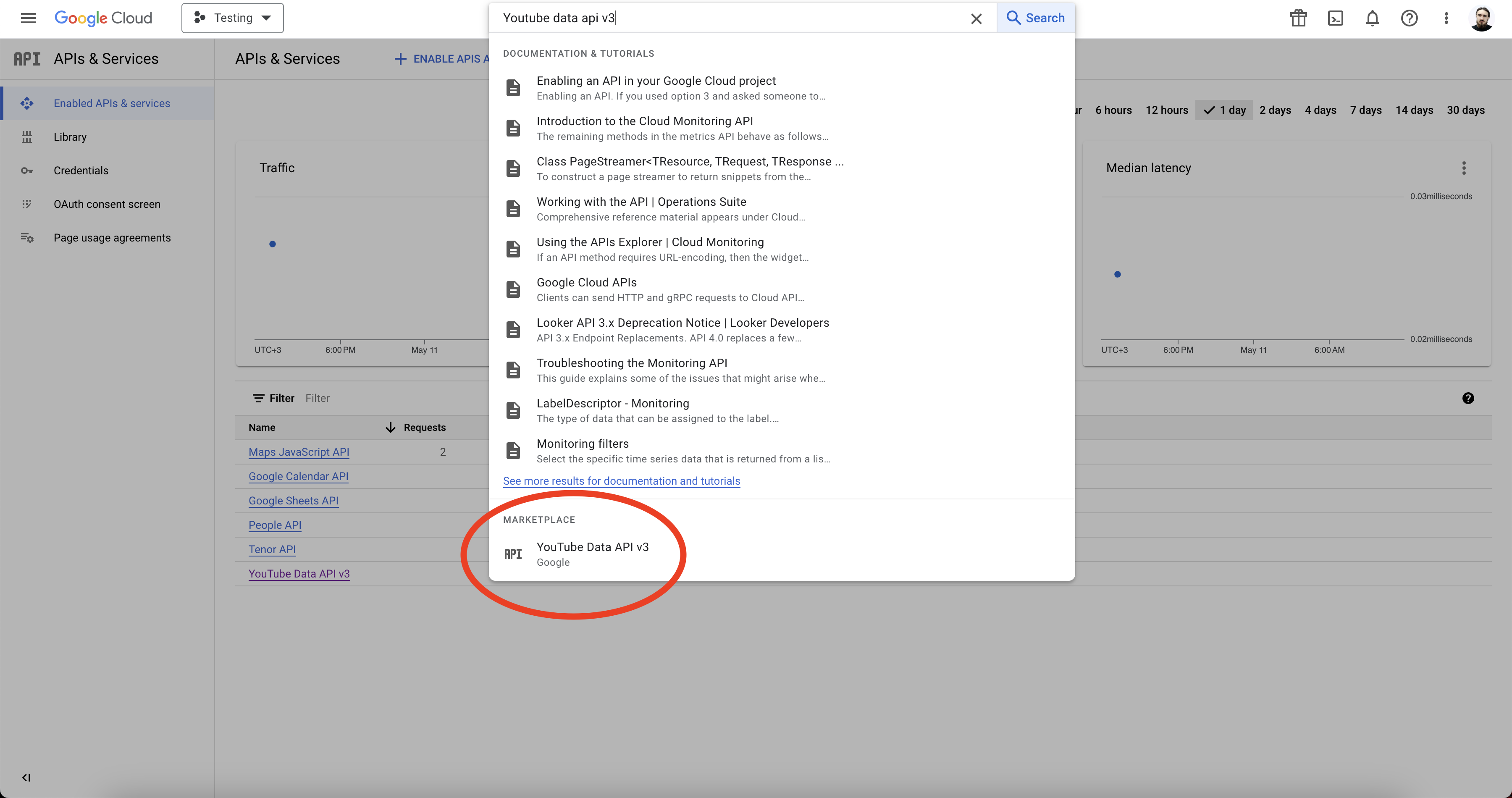
- Search for
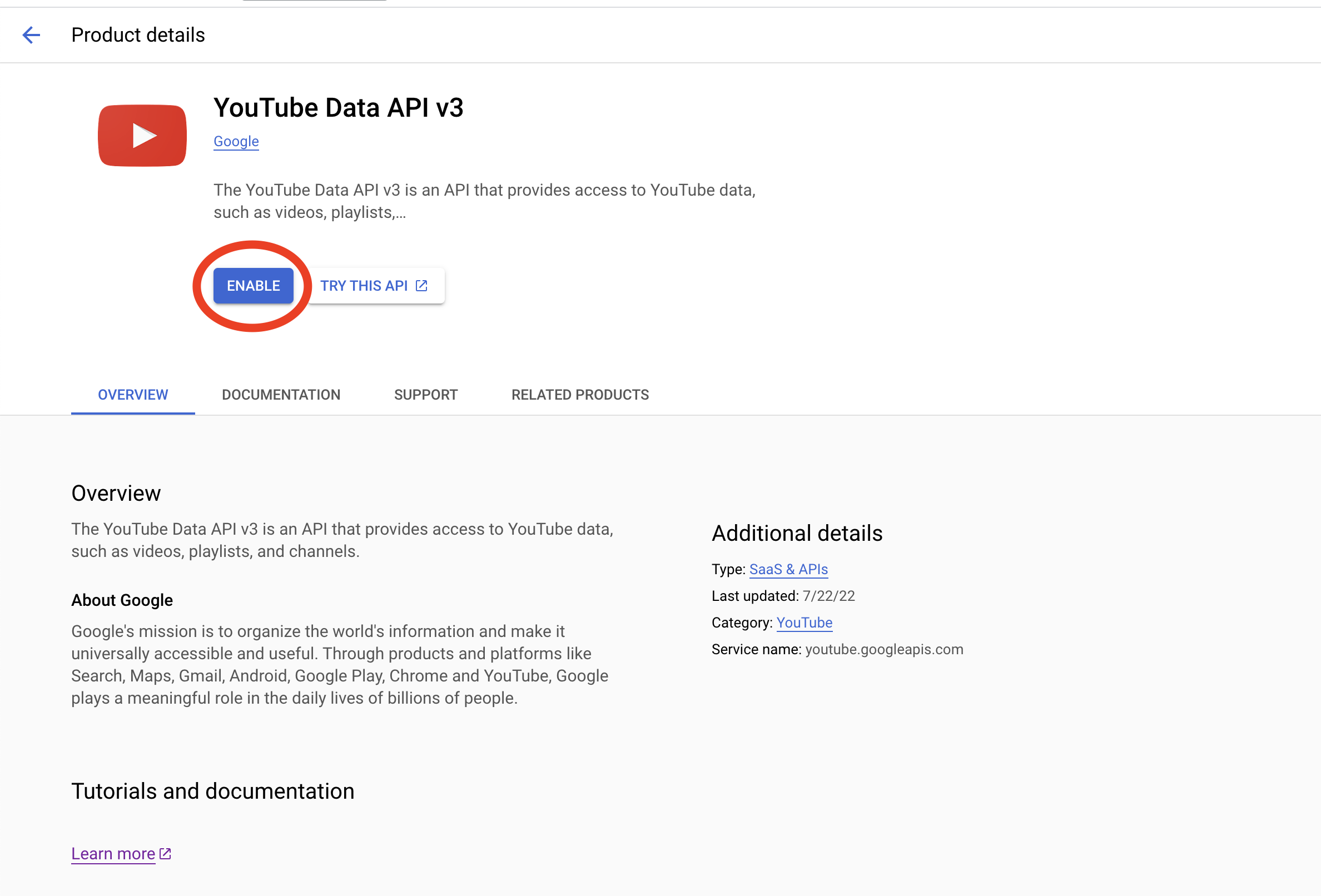
YouTube Data API v3in the search bar and select it from the results. - Click on the Enable button to activate the YouTube Data API v3.
Screenshots:
2. Create the credentials
You can use the same Credential (OAuth 2.0 Client ID) for both YouTube and Google Business Profile integrations. Just ensure all necessary redirect URIs are included.
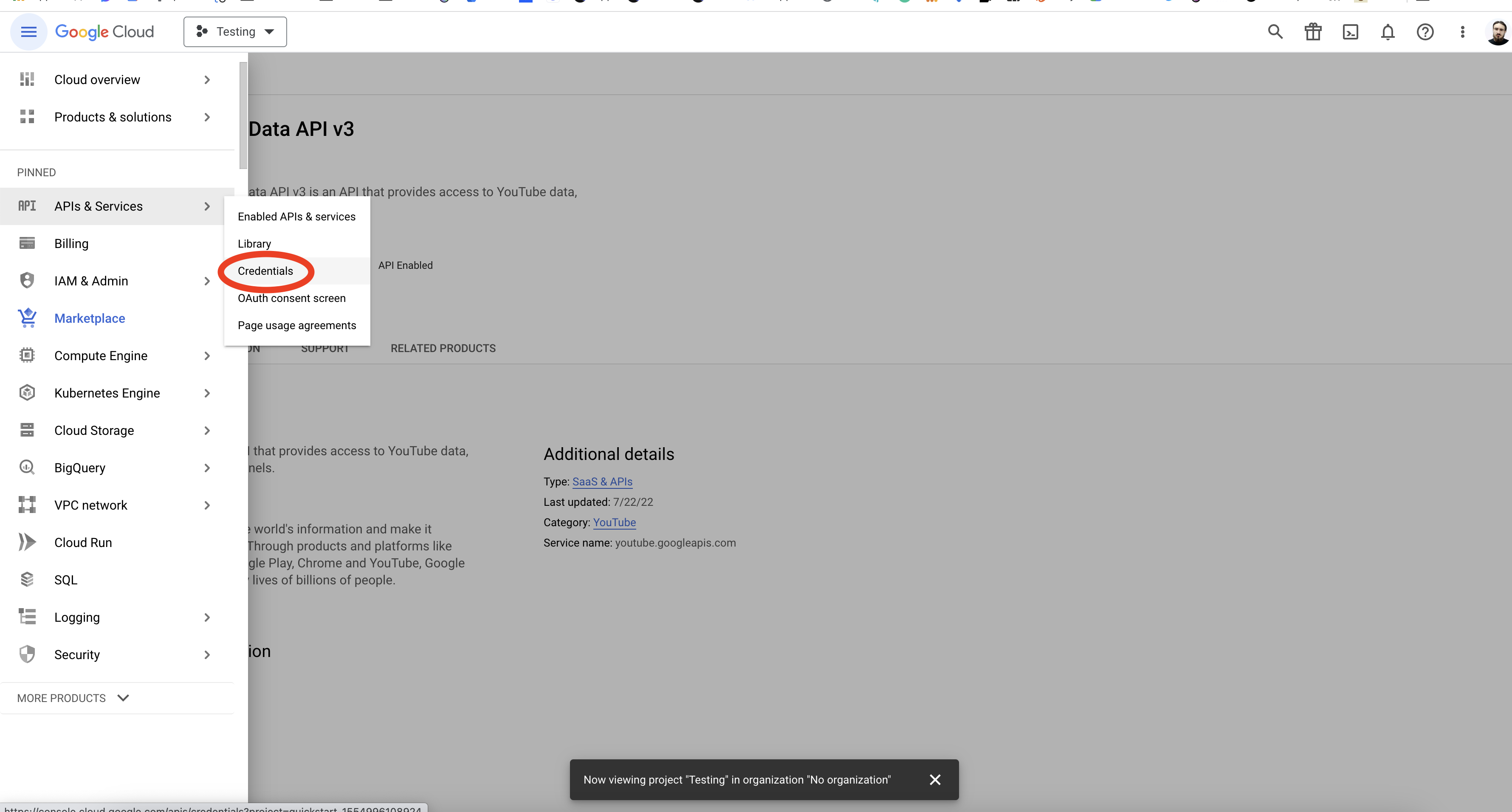
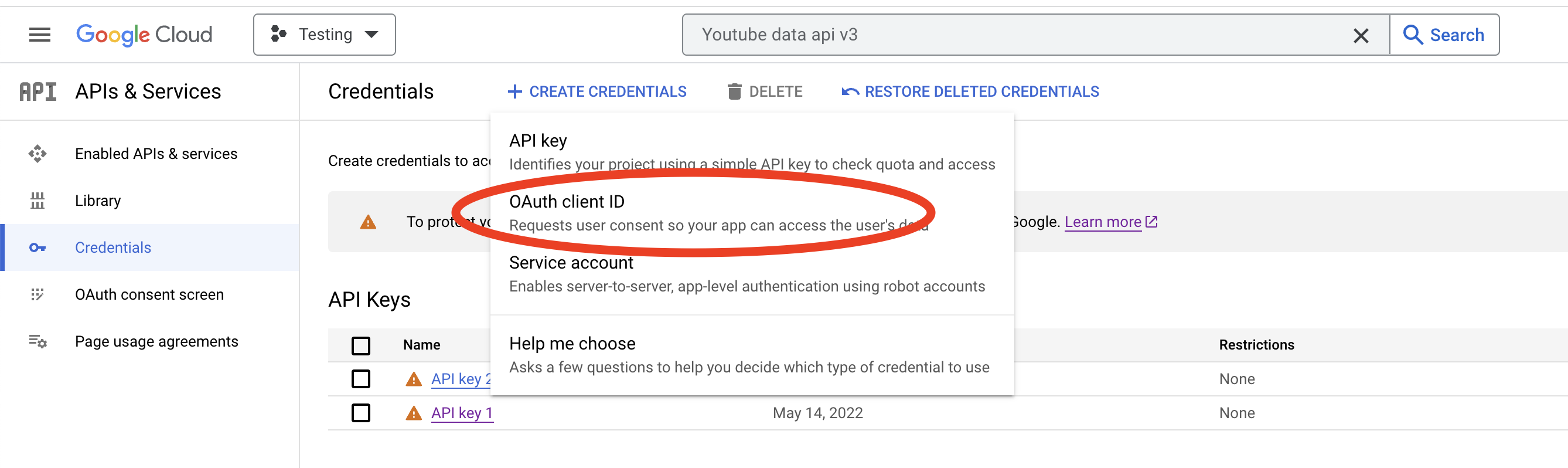
- Navigate to the Credentials tab and click on the Create credentials button.
- Choose OAuth client ID from the dropdown menu.
- If prompted, set up the OAuth consent screen by going to the OAuth consent screen tab and completing the setup before continuing to add the OAuth client ID.
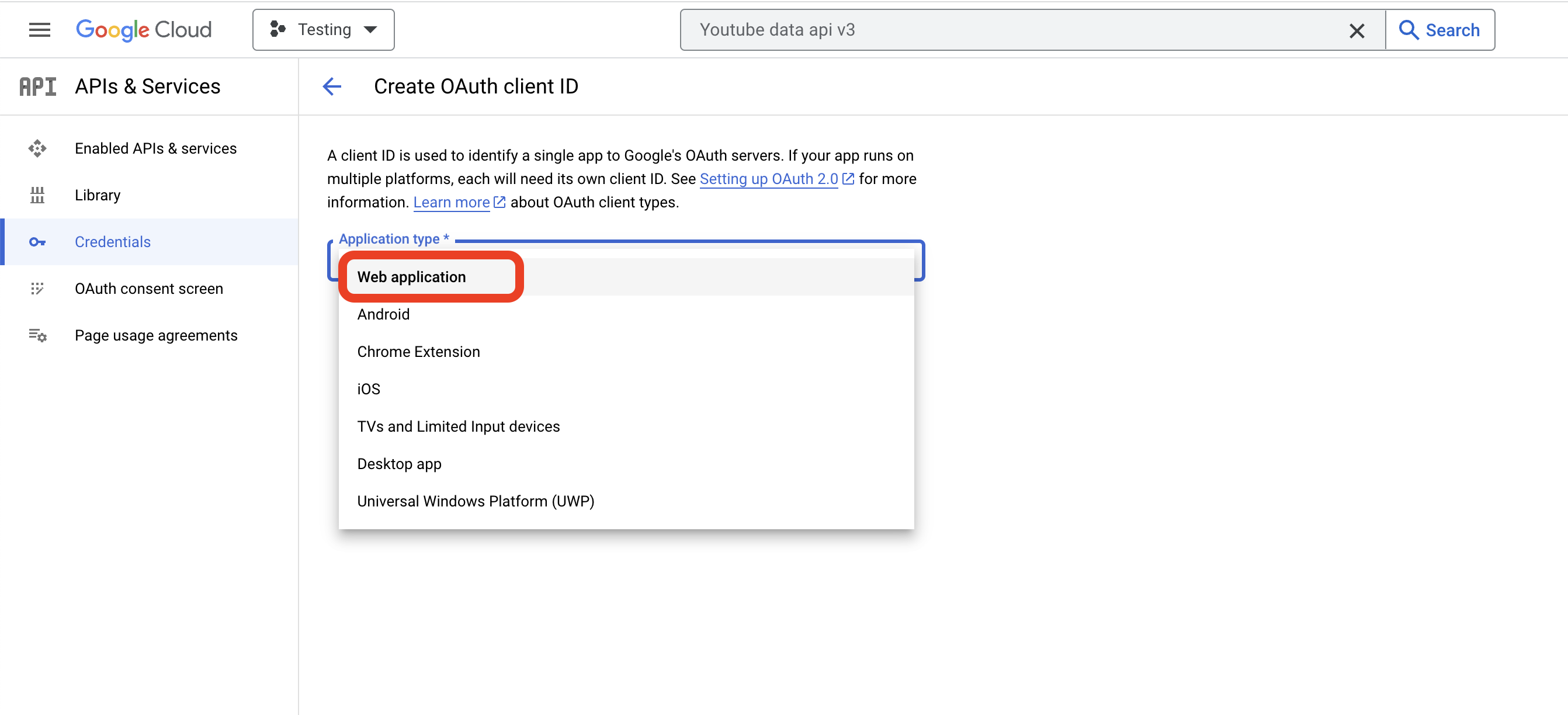
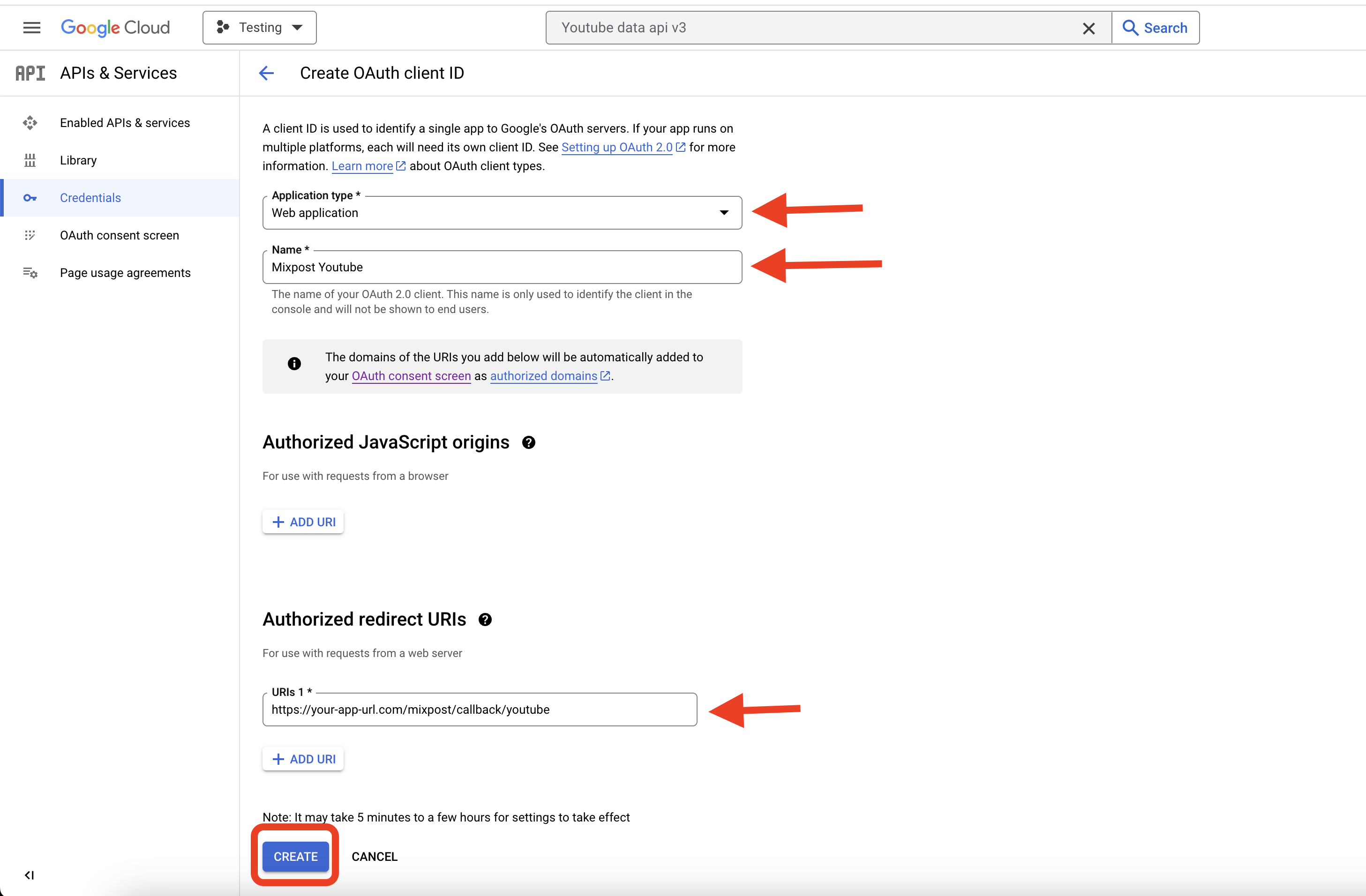
- For Application Type, select Web application.
- Enter a name for your application.
- Add an Authorized redirect URIs
https://example.com/<MIXPOST_CORE_PATH>/callback/youtube
<MIXPOST_CORE_PATH> with your own value<MIXPOST_CORE_PATH> is a placeholder for the MIXPOST_CORE_PATH environment variable — the path prefix Mixpost is served under.
- Set to a prefix, for example
mixpost— use that value:https://example.com/mixpost/... - Empty — Mixpost is served from the root of your domain, so remove the placeholder and the slash that follows it:
https://example.com/...
MIXPOST_CORE_PATH is empty by default in Pro v7+ and Enterprise v8+. In earlier versions, and in Lite, it defaults to mixpost.
Callback URLs — callback/..., inbox-webhook/..., uninstall-callback/... and, in Enterprise, payment-webhook — can carry a different prefix from the rest of your instance, because they follow MIXPOST_CALLBACK_PATH whenever that variable is set. For the OAuth Redirect URI you do not have to assemble it at all: the provider's service form in the Mixpost dashboard shows the exact URL, ready to copy.
- Click on the Create button.
Screenshots:
3. Copy the credentials to Mixpost
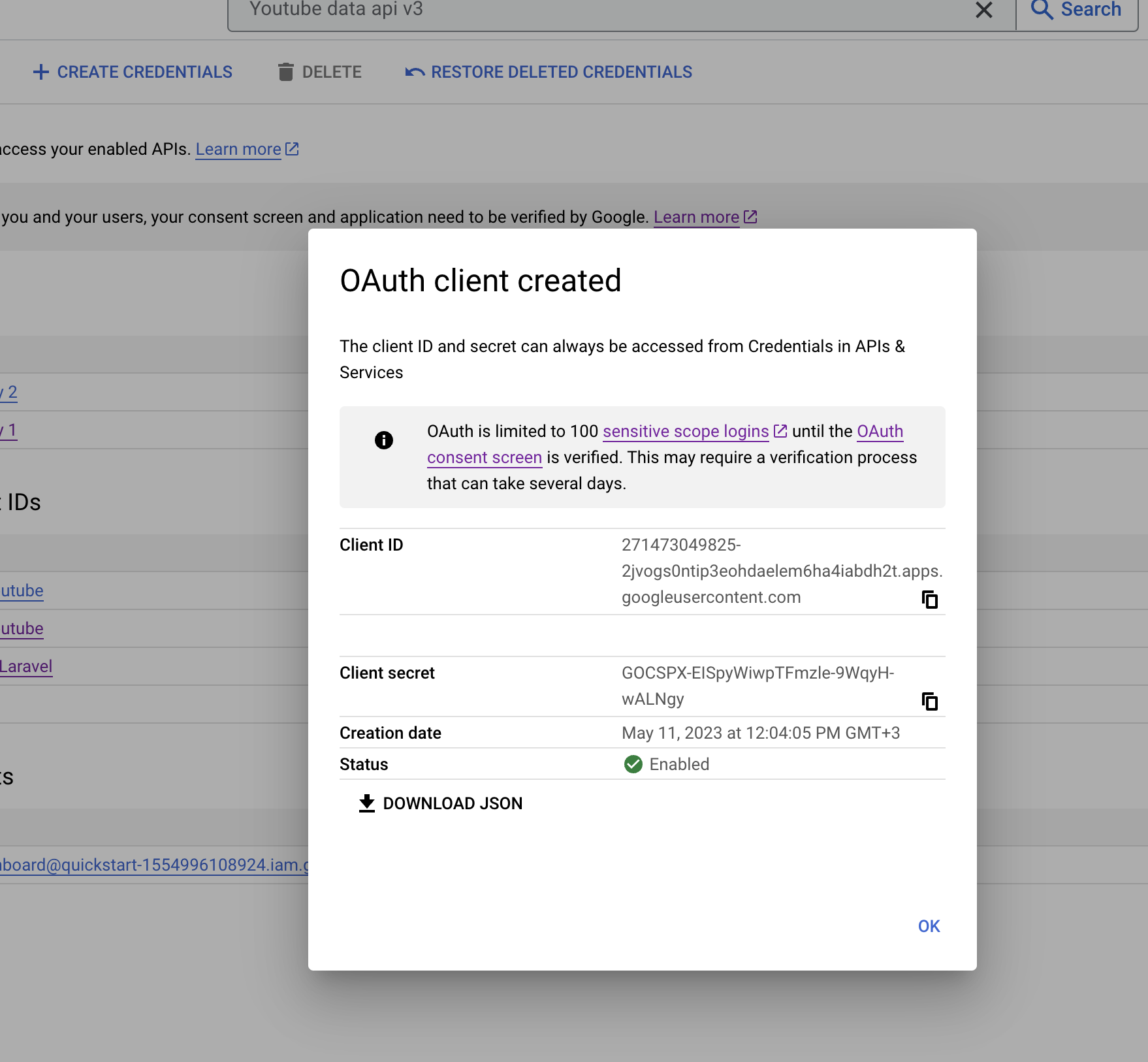
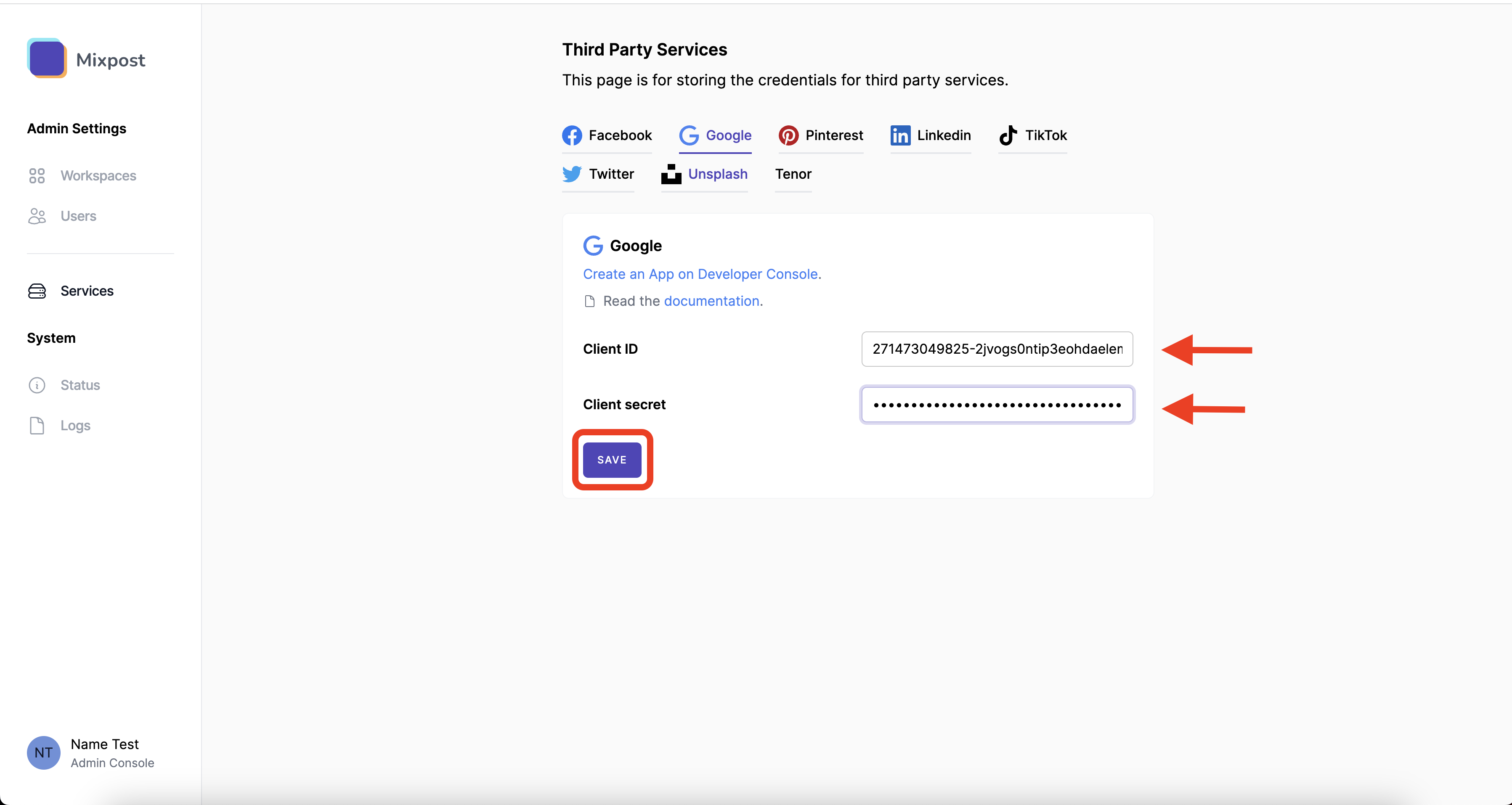
After creating the credentials, you will find the Client ID and Client Secret. Copy these credentials, then navigate to your Mixpost dashboard and paste them into the Google third-party service form.
- Pro and Enterprise
- Lite
Navigate to the User Menu at the bottom left, click Admin Console, and then click on Services from the left sidebar.
Click on Services from the left sidebar.
Screenshots:
4. Done
You have successfully created and configured your Google App to use the YouTube Data API. You can now add a YouTube account to your Mixpost and schedule posts.
- Pro and Enterprise
- Lite
Navigate to a workspace, then select Social Accounts from the left sidebar and click Add Account.
Lite package does not support this social platform. Unlock Pro features